Git Promotion workflow (cross-instance compatible)
For all details on Deployments to prod in Windmill, see Deploy to prod.
Git Promotion is an advanced setup leveraging the same tech as Git Sync for deploying from a workspace to another, even across different instances.
Let's walk through an example to better understand it.
- There are two workspaces
stagingandprod, setup with Git Sync to their respective repositoriesstaging-repoandprod-repo.stagingis also set to targetprod-repofor promotion. - A user makes a change in the script "f/shared/amazing_script" in workspace
staging. - This triggers the promotion, which will create a branch named "wm_deploy/staging/f/shared/amazing_script" on the repository
prod-repowith the changes. - A PR is automatically created through a CI/CD action.
- The change is reviewed by someone with merge rights to
prod-repoand merged. - Once merged, the Git Sync setup between
prodandprod-repoensures the change is reflected in theprodworkspace. Deployment complete
Note that prod-repo and staging-repo can be (and often are) the same repo but targetting a different branch.
Here is a diagram to better illustrate the workflow with this setup.
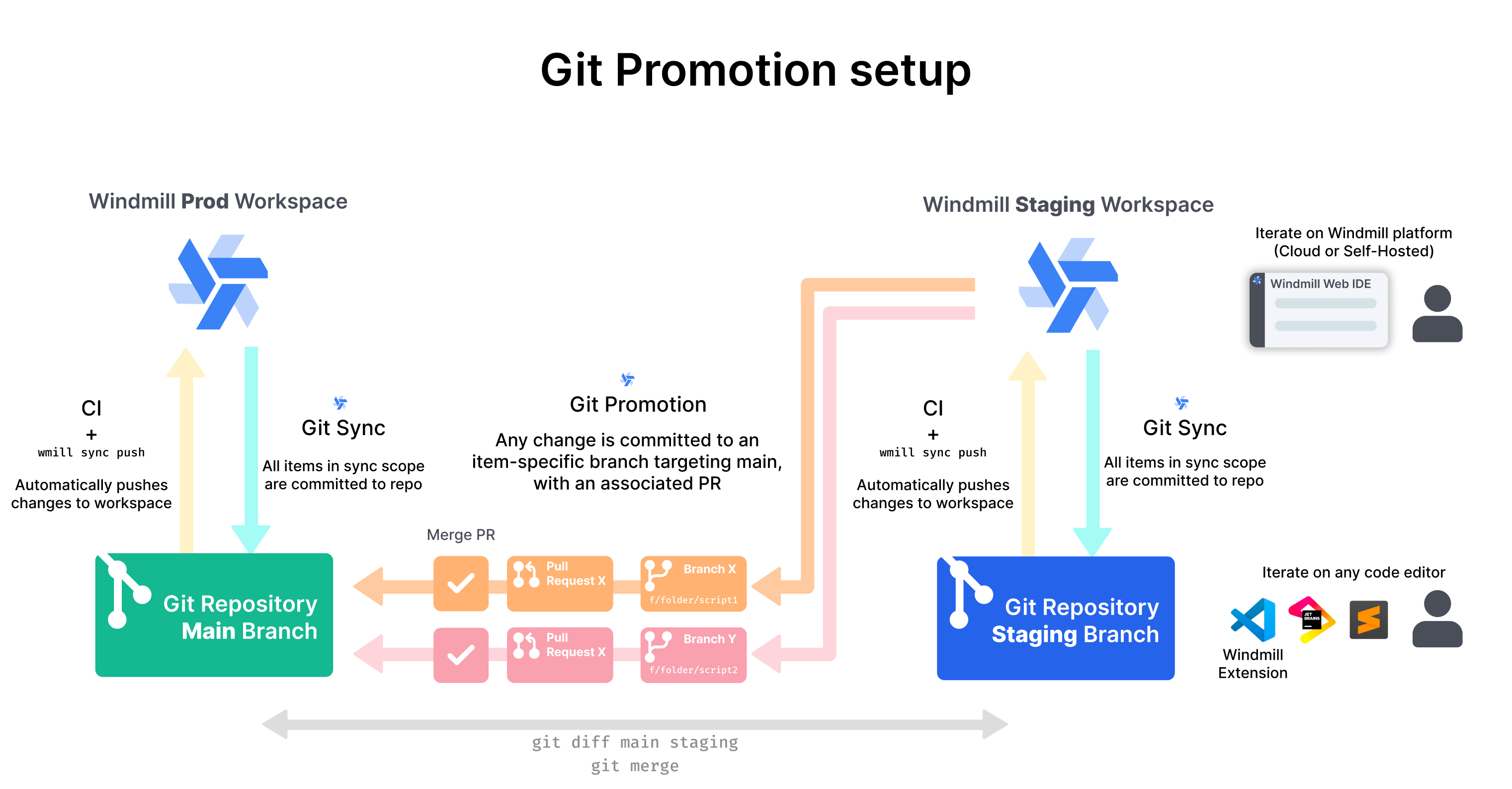
See section Setup the full Git workflow for the detailed setup steps.
This workflow requires the Git sync feature, which is is a Cloud plans and Self-Hosted Enterprise Edition-only feature.
You can also trigger a webhook and push the changes to Windmill using this Windmill script and pass the arguments as query args in the webhook triggered after pushing to the repo.
Check out the windmill-sync-example repository as an illustration of this process.
Setup the full workflow
Note: this is the detailed setup steps for a GitHub repository. It will need to be adapted for GitLab or other git hosting platforms.
The guide covers a staging and prod setup. To add an additional dev environment, simply consider staging to be the target of the dev workspace and prod to be the target of the staging workspace.
Setup git sync
Git Sync must be setup on both staging and prod workspaces. You can choose to sync them to different repositories, or to the same repository but on different branches. Learn how to setup Git Sync for your workspaces. Make sure to include the CI/CD actions for bidirectional sync.
Set the promotion target
There should now be two workspaces, staging and prod and two branches staging-branch, prod-branch. The staging workspace must now be setup to target the prod-branch for promotion. If this is not clear, go back to the diagram at the top of this page.
To do this go to the staging workspace -> Workspace Settings -> Git Sync. If you properly set up Git Sync in the last step, you should find the git sync settings and the git repository resource that points to the staging-branch branch. Under that, you will find the option to add a promotion target. The configuration is identical to Git Sync. Make sure you create a new git resource that points to the prod-branch in the appropriate repo.
Additionally, you will be asked to choose between:
- Create one branch per deployed object (default)
- Group deployed objects by folder: Create a branch per folder containing objects being deployed
Now you've succesfully set-up the prod-branch as the promotion target for the staging workspace. Any changes done to the staging workspace will now also be committed on a branch off of prod-branch named wm-deploy/f/folder/item. In the next step we will create a Github Action that automaticccaly creates a PR to merge these.
GitHub Actions setup
On top of the CI/CD actions you already setup during the Git Sync configuration, you need one more action to automatically create a PR when the wm-deploy/* branches are created
- open-pr-on-commit.yaml
name: "Git Promotion: Deploy from staging to prod"
on:
  push:
    branches:
      - wm_deploy/**
env:
TARGET_BRANCH: prod

jobs:
submit_pull_requests:
runs-on: ubuntu-latest
permissions:
contents: read
pull-requests: write

    steps:
      - uses: actions/checkout@v4
      - name: Create pull request
        run: |
          gh pr view ${{ github.ref_name }} \
          && gh pr reopen ${{ github.ref_name }} \
          || gh pr create -B ${{ env.TARGET_BRANCH }} -H ${{ github.ref_name }} \
          --title "${{github.event.head_commit.message }}" \
          --body "PR created by Github action '${{ github.workflow }}'"
        env:
          GITHUB_TOKEN: ${{ secrets.GITHUB_TOKEN }}
Testing
You are now ready to test the workflow. You can do so by:
- Create and deploy a new script in the staging workspace, give it a path within the allowed filters.
- Check if a PR was created on GitHub to merge wm_deploy/[WORKSPACE_NAME]/[SCRIPT_PATH] into the production branch.
- Merge the PR and check the production workspace. The new script should be now there.
If you have issues you can try the following:
- To see the sync job if you need to debug, go to the runs page and select the "Sync" filter. Git sync jobs should appear there.
- Check the GitHub action runs to see if they were succesful
Managing multiple teams and folders
When working with multiple teams in Windmill, there are several approaches to organize your workflows and prevent overlapping changes. Here are the recommended practices:
Option 1: Same workspace, different folders, different repositories
This is the recommended approach for most cases:
- Keep all teams in the same workspace but assign each team to different folders
- Create separate repositories for each team
- In each repository's
wmill.yaml, specify the folders that team has ownership of using theincludesfield:
includes:
  - "f/team1_folder/**"  # Team 1's folder
  - "f/team2_folder/**"  # Team 2's folder
This setup ensures that:
- Each team works in their own isolated space.
- Changes from different teams won't overlap.
- Teams can have the same initial code in their respective folders.
- Each team's changes will be tracked in their own repository.
Option 2: Separate workspaces
Alternatively, you can create separate workspaces for each team. This approach:
- Provides complete isolation between teams.
- Allows teams to have their own deployment workflows.
- May require more maintenance overhead.
- Is useful when teams need completely different configurations or environments.
Managing changes and pull requests
When using Git Promotion:
- Changes to the same item will be grouped into a single PR.
- Different items will create separate PRs.
- You can use the group per folder option to group changes by folder instead of by item.
When setting up multiple repositories for different teams, ensure that each repository's wmill.yaml file correctly specifies the folders the team should have access to. This prevents accidental modifications to another team's code.