Deploy to prod
When working on Windmill, you will quickly be looking for ways to iterate on and test your scripts, flows, and apps all the while having a working version running. The following section explains the different methods available in Windmill to have a production environement and deploy to it.
Option 1. Draft and deploy - Single workspace
A simple setup in which deploying to prod means deploying items that have been iterated on in the UI as Drafts. Deployments in Windmill are commonly done from the same workspace using the Draft and deploy buttons.
Option 2. Workspace forks - Multi workspace (recommended)
Windmill workspaces can be forked, creating a new copy of the workspace at that point in time. The forked workspace can be iterated on, tested, and once changes are ready, merged back to the original workspace, thus deploying the new versions of the scripts, flows, or apps. The workflow will be familiar to anyone who has used branches in version control tools such as git. The analogy can be further reinforced if Git Sync is setup: Windmill will autmatically create branches for each of the forks, and merging can be controlled direclty through git.
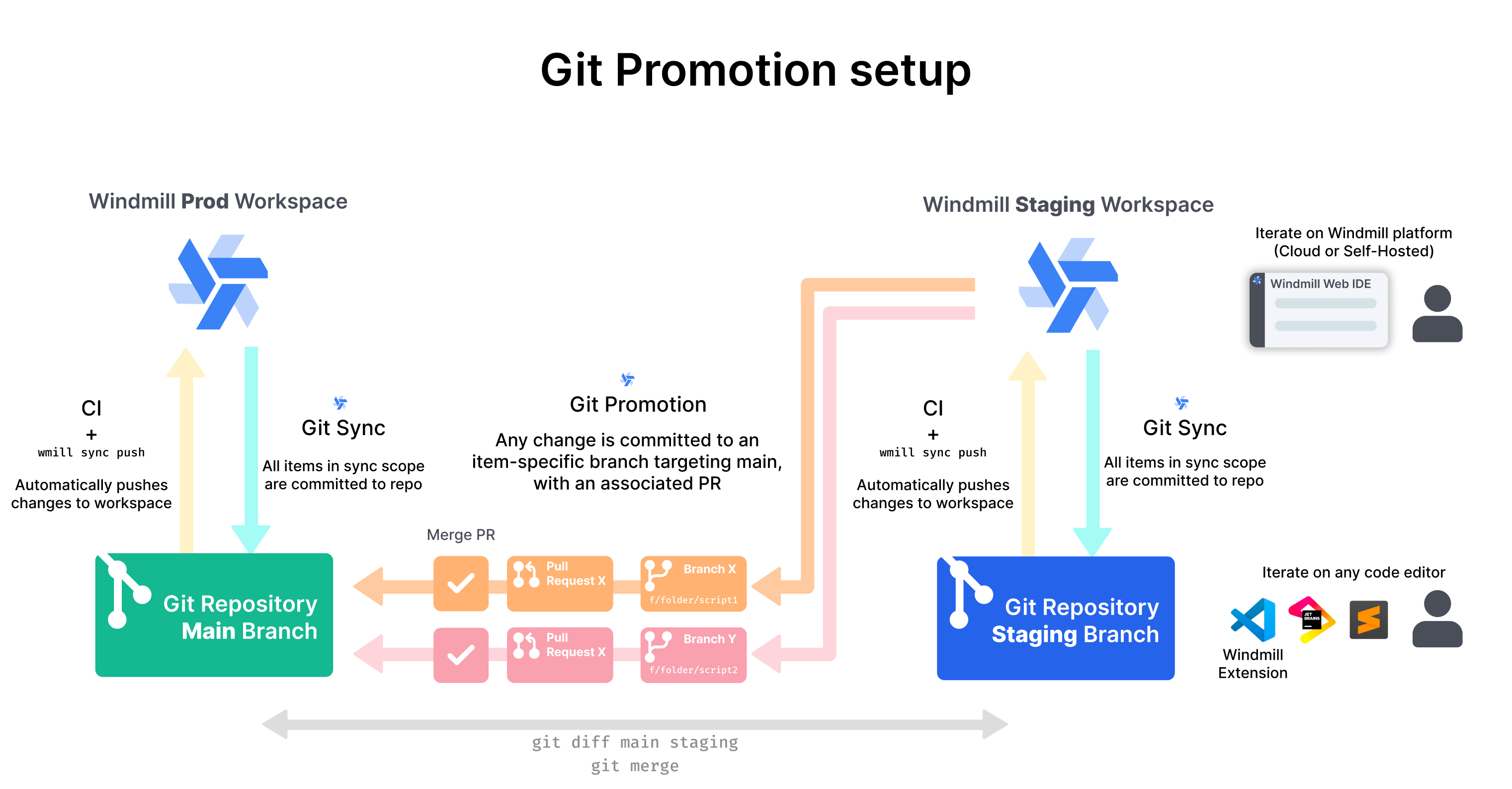
Option 3. Git Promotion workflow: deploying through git - Multi workspace (possible cross-instance)
This is a more complex but very reliable setup that leverages Git Sync to deploy from one workspace to another through git. When changes are done to the Staging workspace, they are pushed to a branch in the Prod repo. Once merge to the main branch of the Prod repo, the Prod workspace is updated with the changes.
This workflow lets you review all the changes on a PR before merging and deploying. It also has the advantage, unlike the other options here, to work across separate windmill instances.
Option 4. Deploy to prod using the UI only - Multi workspace
From a workspace in Windmill, you can deploy a script/flow/resource/variable and all its dependencies to another workspace.
Deploy to prod using the UI is Cloud plans and Self-Hosted Enterprise Edition only.
More details at: